
Use this guide when you get a new router, change your Wi-Fi name or password, or when the Cala app says it has lost connection to your water heater. It's the same pairing as when you first set up your Cala, started a little differently.
Put your Cala into pairing mode
-
On your Cala's screen, press Down until SETTINGS is highlighted, then press Select. (If the screen is dark, press any button first to wake it.)
-
Press Down until APP SETTINGS is highlighted, then press Select.
-
With CHANGE WI-FI highlighted, press Select. The screen shows STEP 1 OF 3: PHONE, Enter this code in the Cala app and a 5-digit code.
When you change Wi-Fi, the screen tells you where to go in the app.
Start from the app
In the Cala app, start in one of two ways:
- If the Home screen shows NO CONNECTION TO WATER HEATER: tap the banner, then tap RECONNECT.
- Any other time: tap the menu icon at the top left, tap your home's name, tap Manage Homes, choose your home, tap Cala Water Heaters, choose your water heater, then tap UPDATE WIFI CREDENTIALS.
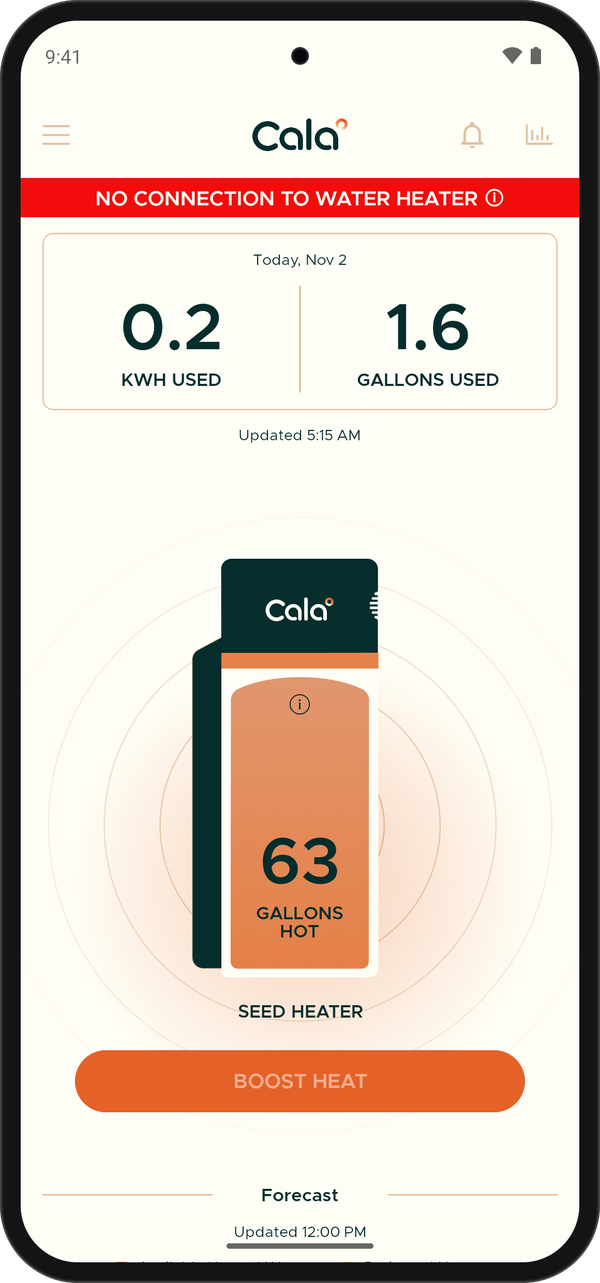
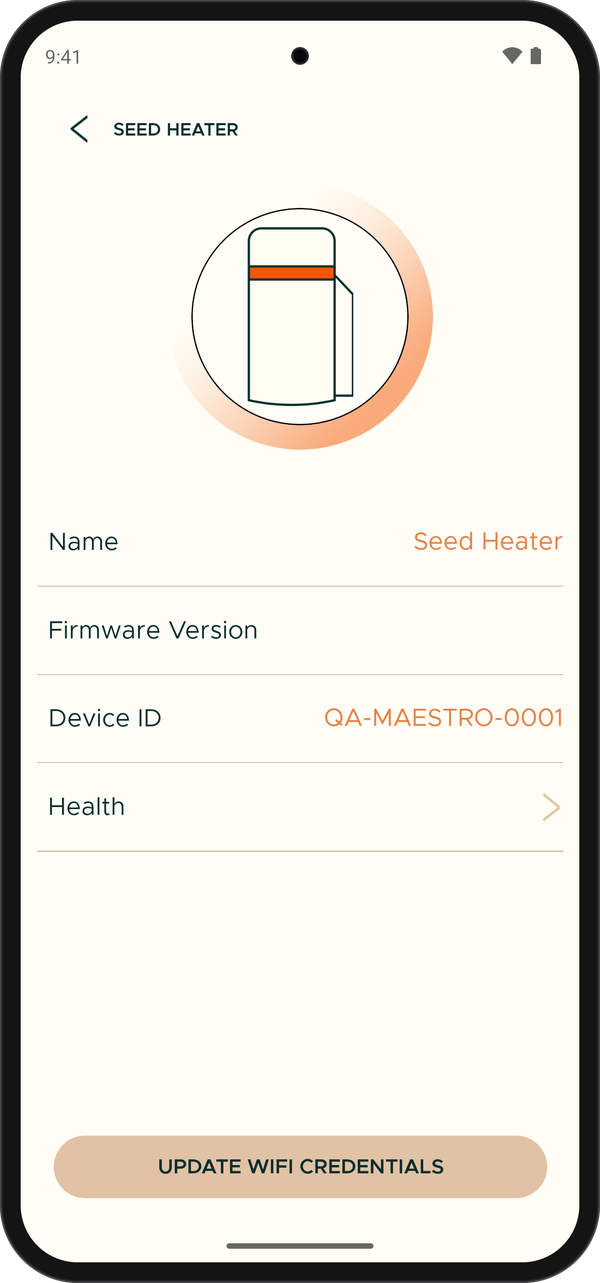
From here the app walks you through the same steps as first-time setup: pair your phone with the code on your Cala's screen, then connect to Wi-Fi. When the app shows You're all set!, tap GO TO APP HOME. The NO CONNECTION TO WATER HEATER banner is gone.
If a step doesn't work, see If something goes wrong. Your Cala's screen also shows a support code; if you contact Cala, include it so we can help faster.
Test your connection
Your Cala can test its own Wi-Fi and cloud connection:
-
On your Cala's screen, go to SETTINGS, then press Down until ADVANCED is highlighted and press Select.
-
Press Down until NETWORK TEST is highlighted, then press Select.
-
Press Select to START TESTS. The test takes up to 30 seconds.
-
Read the results. Under Wi-Fi, Connected: shows whether your Cala is on Wi-Fi and Strength: shows the signal. Under Cloud Connection, Connected: shows whether it can reach Cala.
NETWORK TEST results for a Cala that is online.