
Cala has sensible defaults for how it heats, so most homes never need these settings. If you have solar, a home battery or a backup power system, Advanced Settings in the Cala app lets you choose how Cala uses your extra solar, whether the backup elements may run, and what Cala does when the grid is down.
Open Advanced Settings
-
In the Cala app, tap the menu icon at the top left, then tap SYSTEM INTEGRATIONS.
-
Tap Advanced Settings. The ADVANCED SETTINGS screen lists Using extra solar, Backup elements and Off-grid.
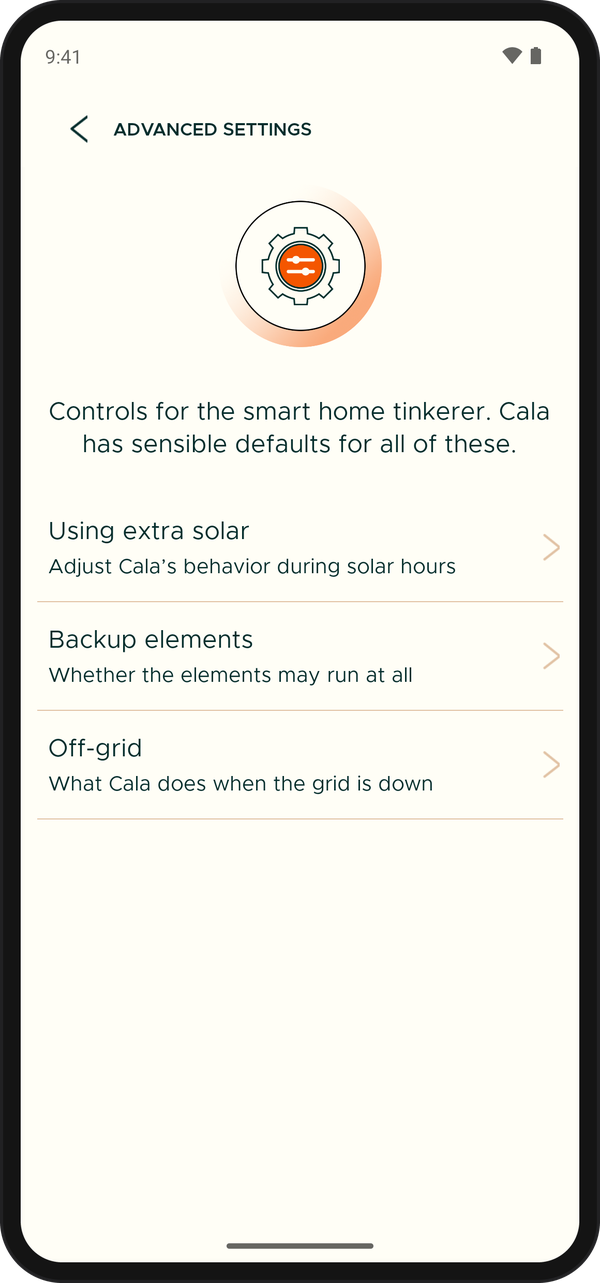
The three Advanced Settings.
Using extra solar
To open it, tap Using extra solar on the ADVANCED SETTINGS screen, or tap CUSTOMIZE HOW CALA HEATS on the SOLAR & BATTERY screen. The USING EXTRA SOLAR screen opens. Which sections you see depends on what Cala receives from your solar system:
- NET METERING: always.
- CHARGING: when Cala has your solar and Home Assistant sends your battery charge.
- EXPORTING POWER: always. Its thresholds appear when Home Assistant sends how much power you're exporting to the grid.
- WHEN YOU'RE PRODUCING: when Cala has your solar but no export or battery readings, for example when you added your panels by hand.
Tap the (i) icon at the top right for a short explanation of net metering and thresholds, with charts.
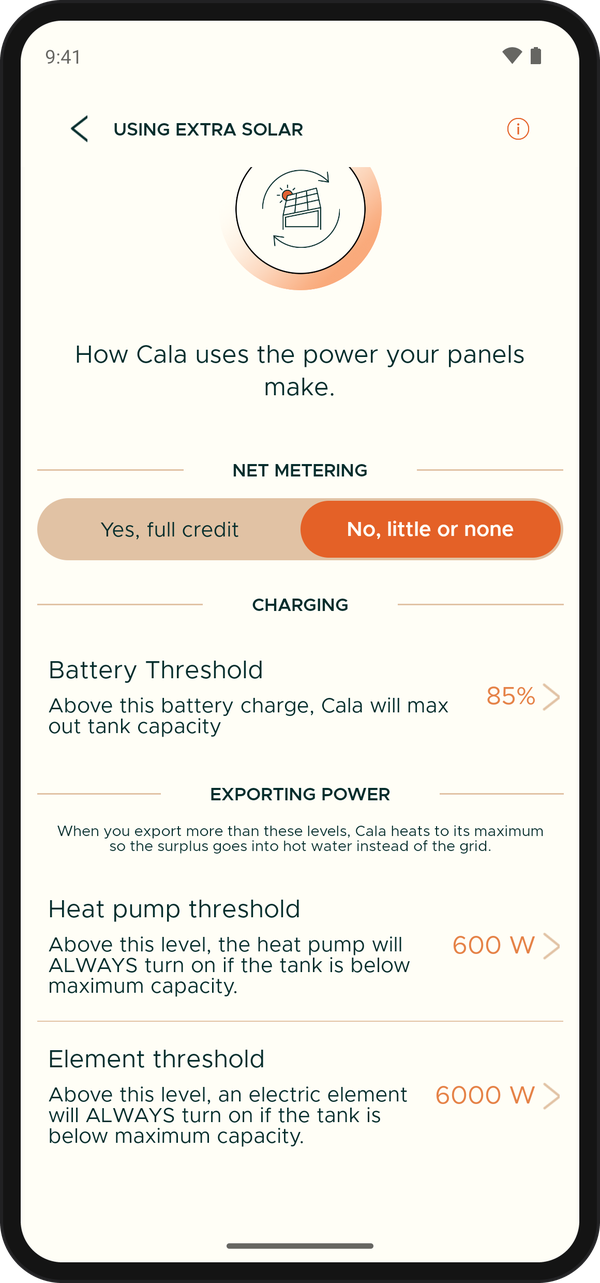
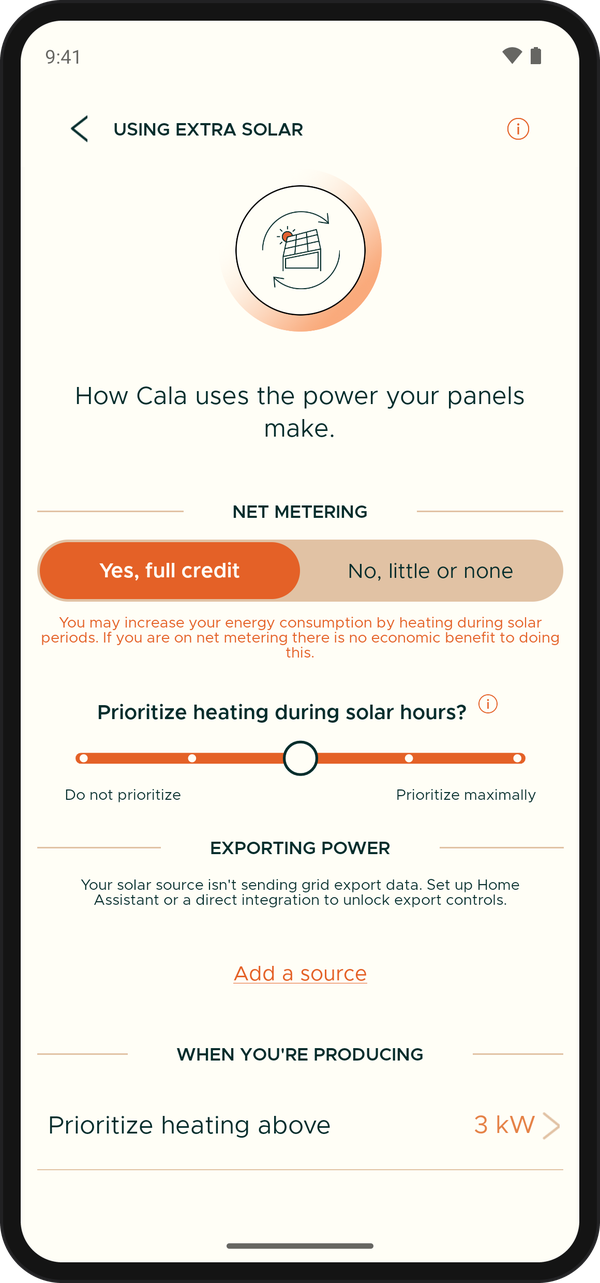
Tell Cala whether you have net metering
Net metering means your utility gives you full credit for the solar power you send to the grid. Under NET METERING, tap the choice that matches your plan:
- No, little or none: the solar you export earns little or nothing, so power from your own panels is effectively free. Cala treats your solar hours as free and plans to heat during them.
- Yes, full credit: using your solar saves you nothing over selling it, so Cala follows your rate schedule.
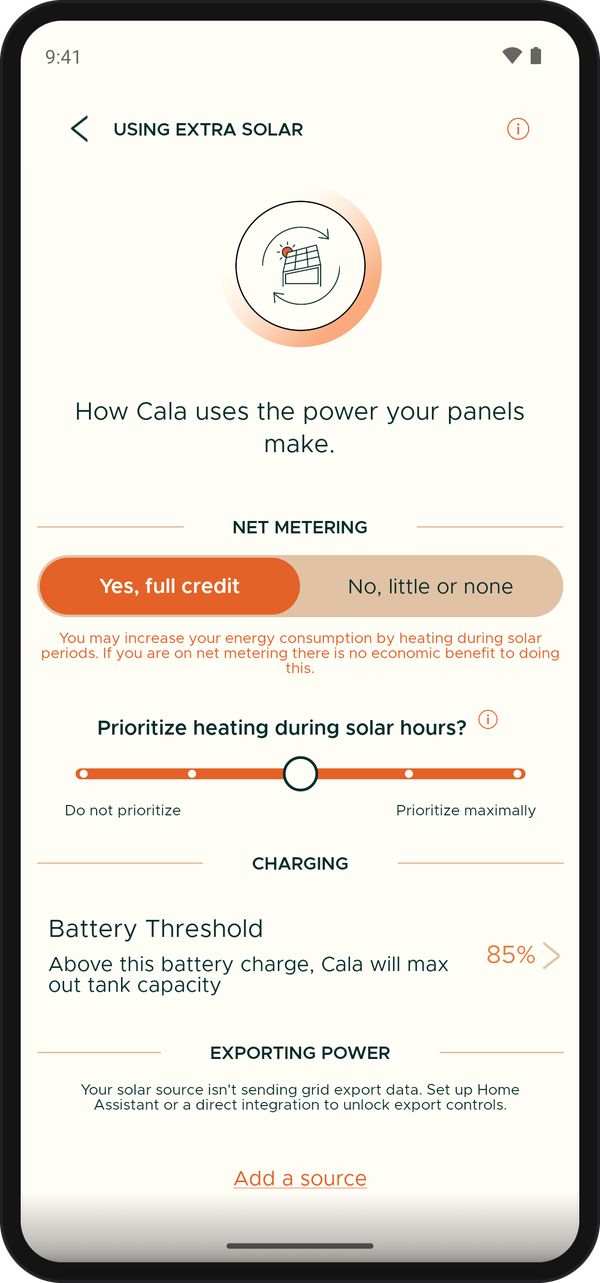
Prioritize heating during solar hours
If you chose Yes, full credit and Cala isn't receiving export readings, a slider asks Prioritize heating during solar hours? Drag it between Do not prioritize and Prioritize maximally.
- At Do not prioritize, Cala doesn't consider your solar when it plans.
- Further right, Cala favors your solar hours more strongly. At Prioritize maximally, Cala plans as if electricity is free while you're producing solar.
With net metering, heating during solar hours can use more energy without saving you money. Tap the (i) icon next to the question for more detail.
Start heating at a battery charge
Under CHARGING, Battery Threshold shows the battery charge at which Cala heats your tank to its maximum.
-
Tap Battery Threshold. The BATTERY THRESHOLD screen opens.
-
Drag the right marker to the charge that starts heating, shown under Starts heating to max at.
-
Drag the left marker to the lowest charge Cala may draw the battery down to, shown under Stops heating to max at.
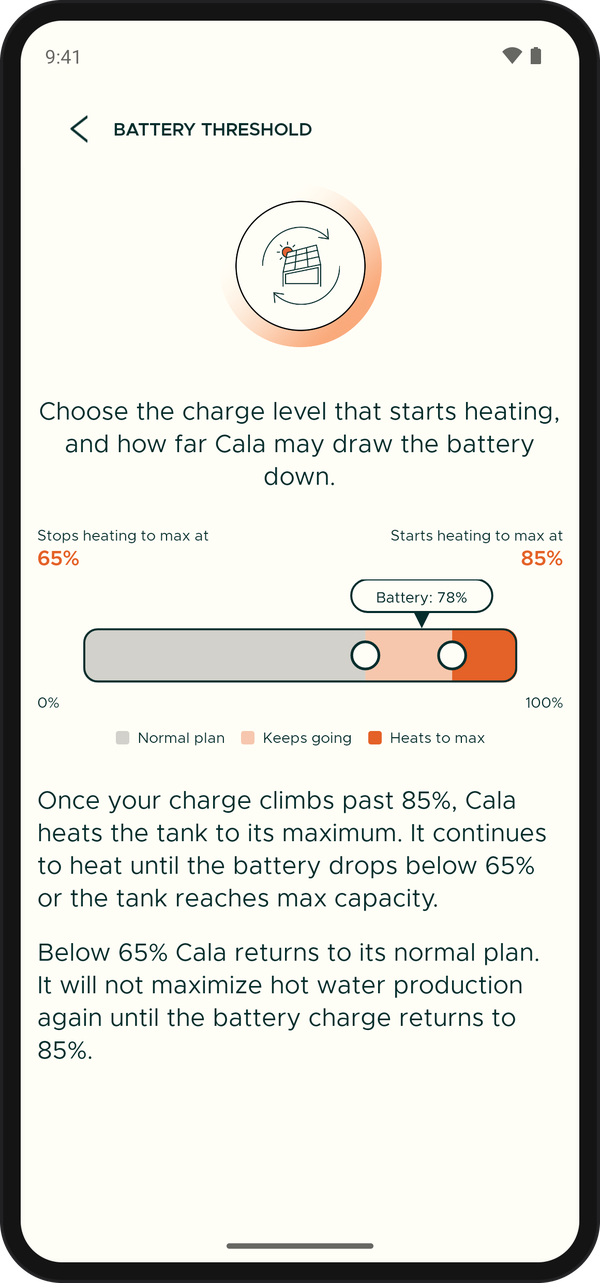
The bar shows your battery's current charge above it.
When Home Assistant is sending your battery charge, a Battery label above the bar shows the current charge. The colors on the bar show where Cala follows its Normal plan, where it Keeps going, and where it Heats to max.
Once your battery charge climbs past the start level, Cala heats the tank to its maximum. It keeps heating until the battery drops below the stop level or the tank is full. Below the stop level, Cala goes back to its normal plan until the charge returns to the start level.
If the slider above is set to Do not prioritize, this row is greyed out.
Heat with the power you're exporting
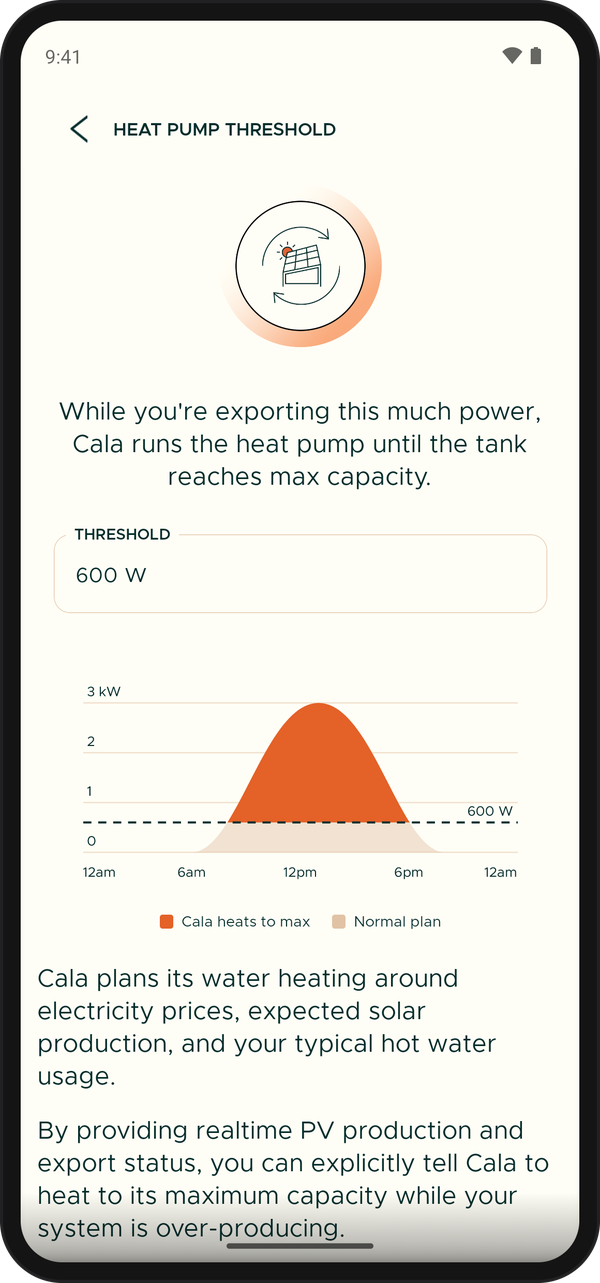
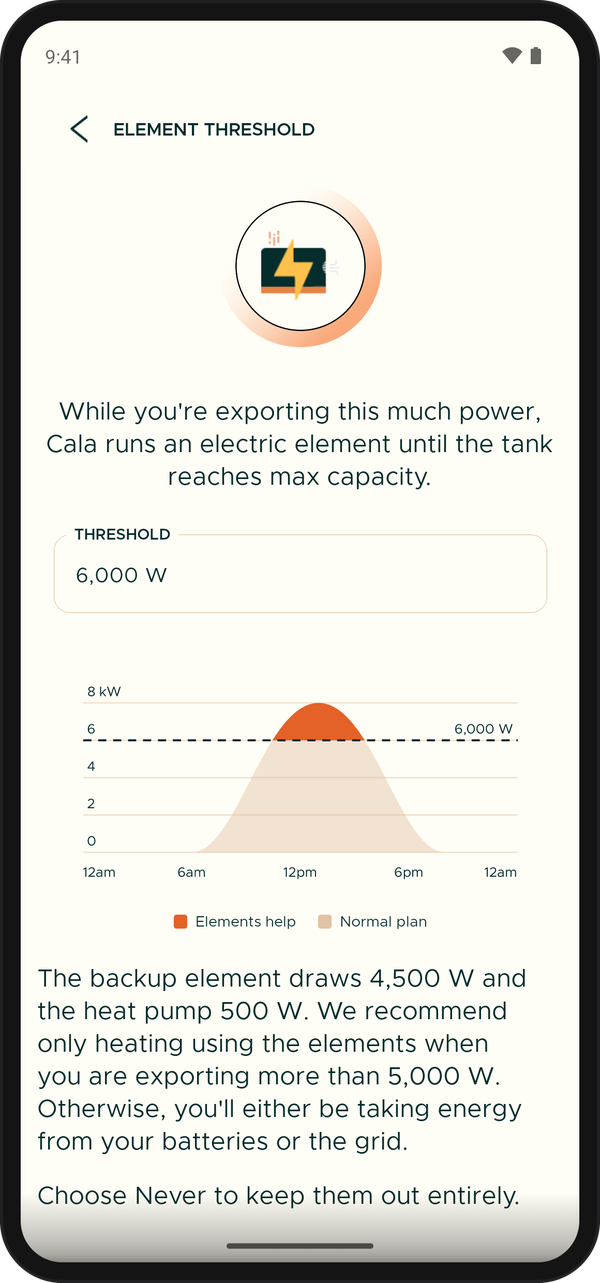
When Home Assistant sends how much power you're exporting, EXPORTING POWER has two thresholds. When you export more than these levels, Cala heats to its maximum so the surplus goes into hot water instead of the grid. This works whichever net metering choice you made.
- Heat pump threshold: above this export level, the heat pump turns on until the tank reaches maximum capacity. Choose 600, 1,000, 1,500, 2,000 or 3,000 W. Cala recommends 600 W: the heat pump always draws less than that, so your own system covers all of it.
- Element threshold: above this export level, an electric element also turns on until the tank reaches maximum capacity. Choose Never or 6,000 W or more (never below your heat pump threshold). An element draws 4,500 W and the heat pump 500 W, so Cala recommends using the elements only when you export more than 5,000 W. Otherwise the power comes from your battery or the grid.
To change a threshold:
-
Tap Heat pump threshold or Element threshold.
-
Tap THRESHOLD, choose a level and tap SELECT.
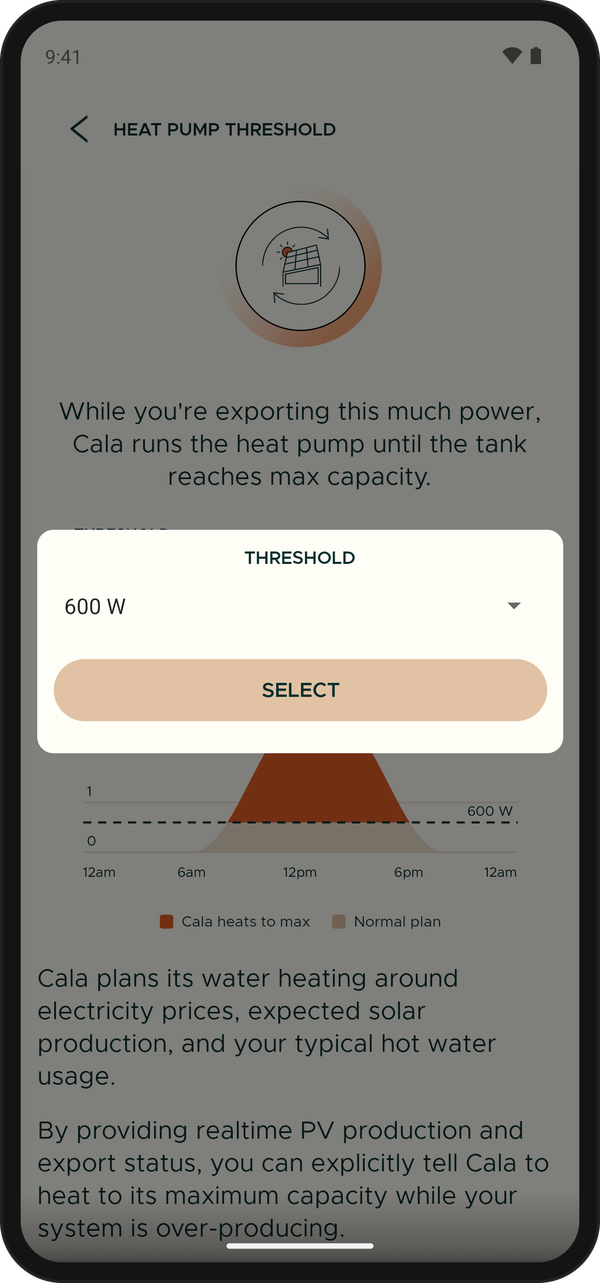
Choose a level, then tap SELECT. -
Tap the back arrow. The new level shows next to the threshold on USING EXTRA SOLAR.
If Backup elements is set to Never, Element threshold shows Never and is greyed out.
While Cala is heating with your solar, the SOLAR & BATTERY screen shows a Heating with your solar card. It shows whether the heat pump and each element are on, and why Cala is heating, for example that you're exporting more than your heat pump threshold.
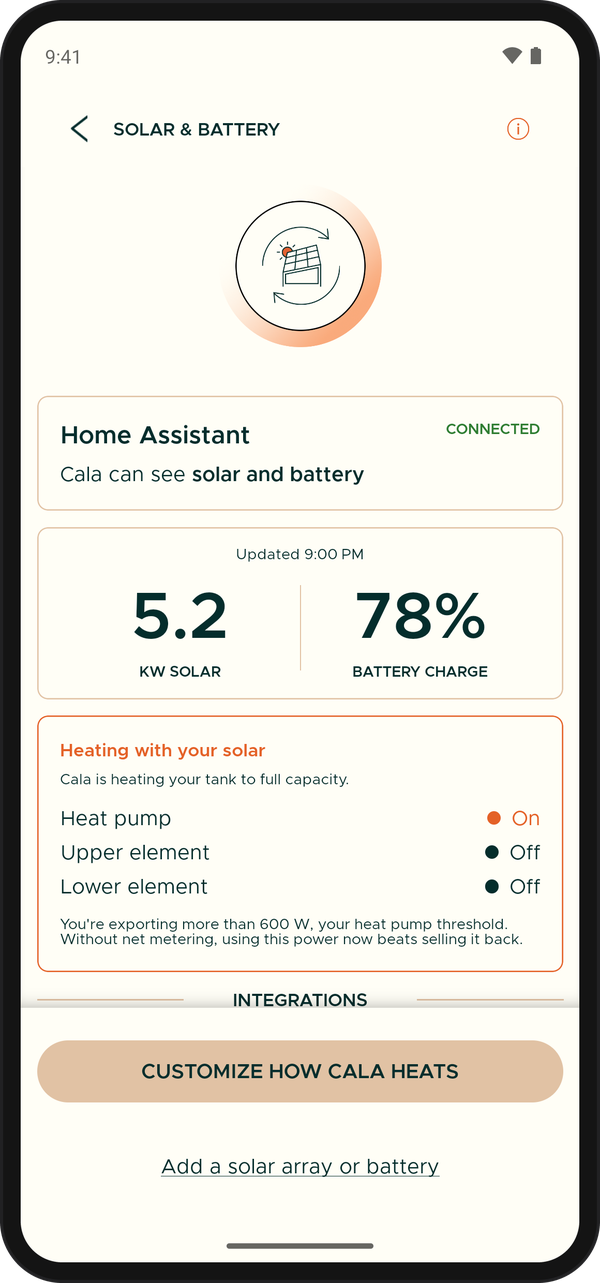
If Cala isn't receiving export readings, this section says so instead. Tap Add a source to connect Home Assistant. See Send solar, grid and battery data from Home Assistant.
Prioritize heating above a production level
Under WHEN YOU'RE PRODUCING, Prioritize heating above works without any export readings. When your panels are producing more than this level, Cala favors running the heat pump so the energy goes into hot water rather than out to the grid.
-
Tap Prioritize heating above. The PRIORITIZE HEATING screen opens.
-
Tap THRESHOLD and choose a level from 1 to 25 kW, or Never to leave this off. Tap SELECT.
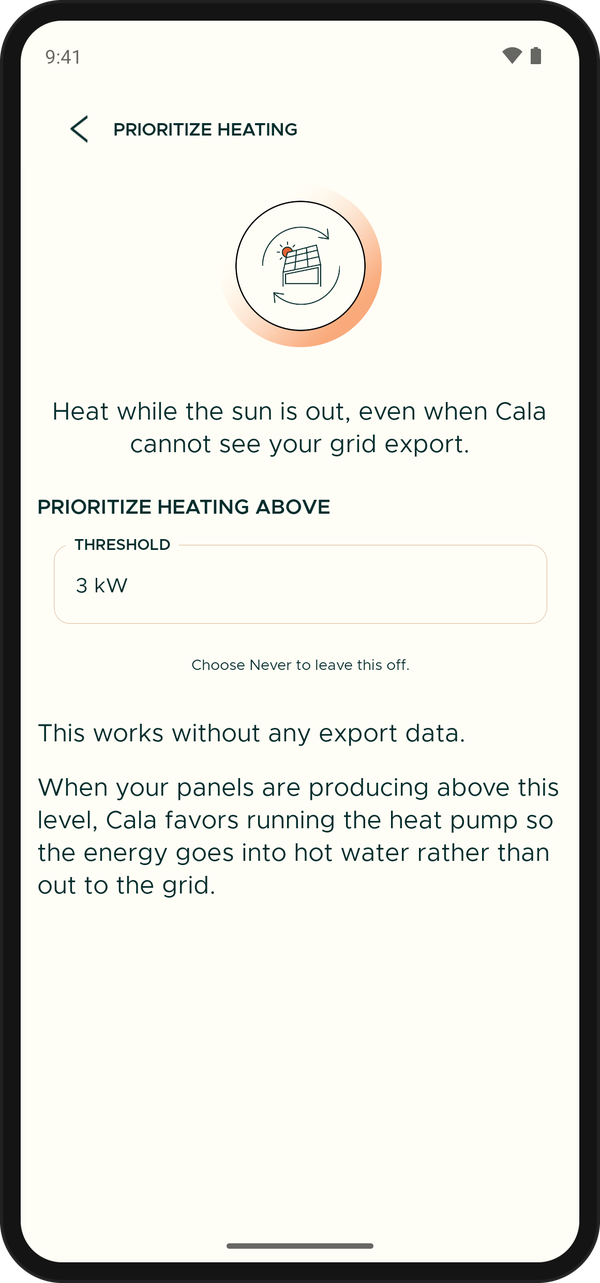
Choose Never to leave this off.
If the slider above is set to Do not prioritize, this row is greyed out.
Backup elements
Cala usually heats with its heat pump. It may also use its electric elements, which heat faster but use far more power, if you're close to running out of hot water.
-
On the ADVANCED SETTINGS screen, tap Backup elements.
-
Under ALLOW BACKUP ELEMENTS, tap When needed or Never.
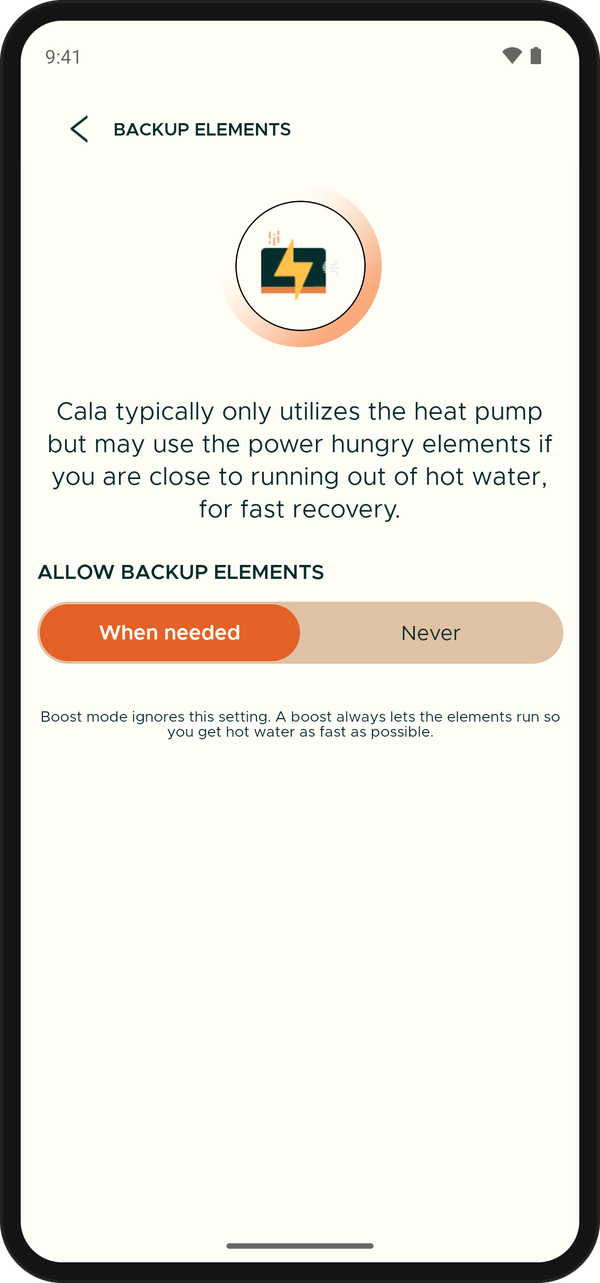
When needed is the usual choice.
- When needed: Cala may use the elements for fast recovery when you're close to running out of hot water.
- Never: the heat pump heats on its own. On heavy days, that can mean waiting longer for hot water. It also turns off the Element threshold and the Allow elements choice for off-grid.
Boost always lets the elements run, whatever you choose here, so you get hot water as fast as possible. See Boost for extra hot water.
Off-grid
When your home is running on its own power, for example from a battery or generator during an outage, hot water competes with everything else. Off-grid tells Cala the grid is down and how it may heat until it's back.
Turn off-grid mode on or off
-
On the ADVANCED SETTINGS screen, tap Off-grid.
-
Tap OFF-GRID NOW to turn it on. The screen shows when it turns off and how many hours are left.
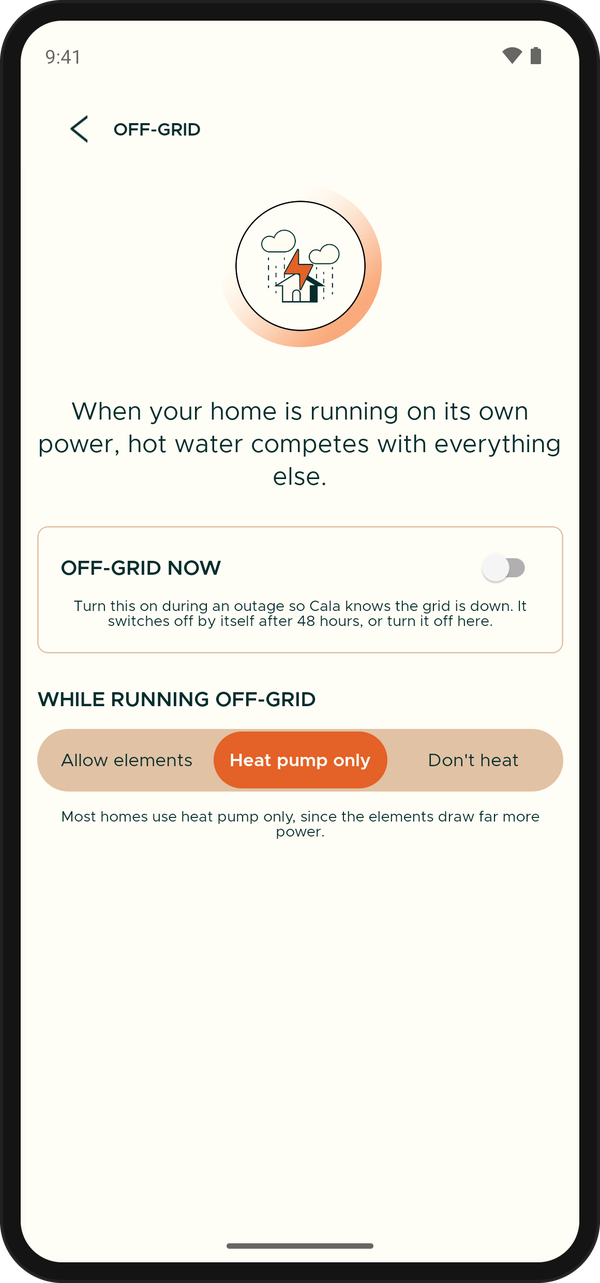
OFF-GRID NOW and what Cala does while you're off-grid. -
When the grid is back, tap OFF-GRID NOW again to turn it off. If you don't, it switches off by itself after 48 hours.
While off-grid mode is on, an off-grid icon shows above the tank on the app's Home screen. Tap it to see "Running off-grid", and tap OFF-GRID SETTINGS to come back to this screen.
Choose how Cala heats while off-grid
Under WHILE RUNNING OFF-GRID, tap one of:
- Allow elements: Cala may use the heat pump and the electric elements.
- Heat pump only: Cala heats with the heat pump alone. Most homes use this, since the elements draw far more power.
- Don't heat: Cala doesn't heat while you're off-grid.
Allow elements is only available when Backup elements is set to When needed.
If Home Assistant reports an outage
If your Cala is paired with Home Assistant and Home Assistant reports that the grid is down, Cala goes off-grid on its own. The app shows "Off-grid", and the OFF-GRID screen shows OFF-GRID NOW turned on with "Reported by Home Assistant". It turns off by itself when the grid is back, and the app shows "Grid is back".