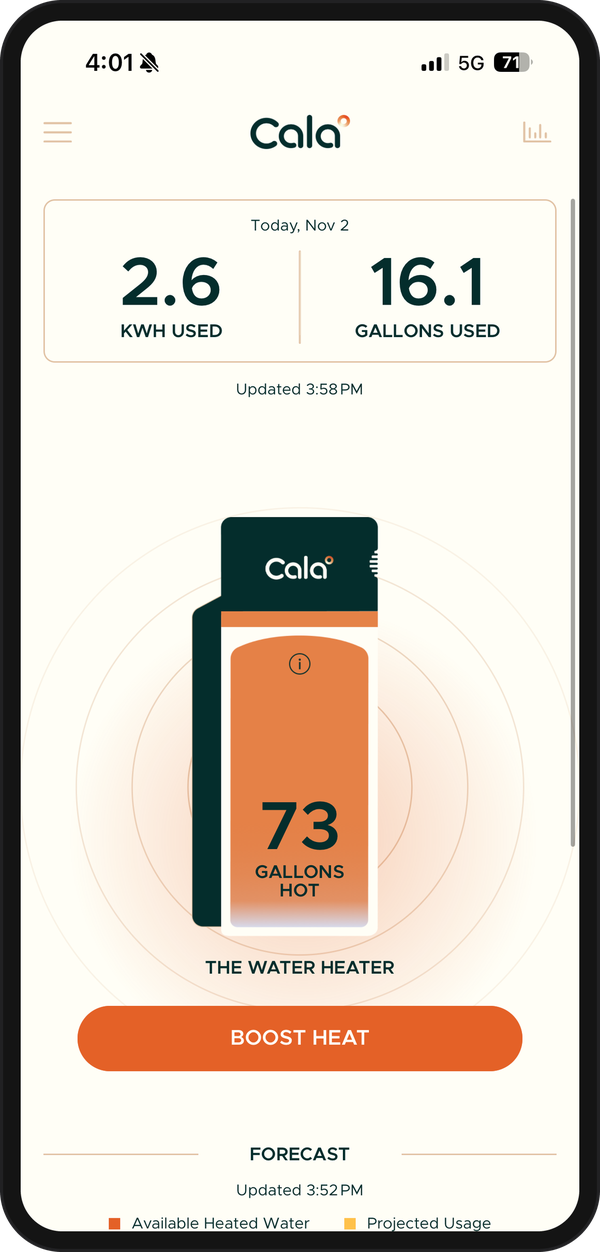
The Home screen is the first thing you see when you open the Cala app. It shows how much hot water is ready, what you've used today and what Cala expects you'll need next.
Today's use
At the top, the box labelled Today with today's date shows two numbers for the heater you're looking at:
- KWH USED: the electricity your Cala has used so far today.
- GALLONS USED: the hot water your home has used so far today.
Just below it, Updated and a time tells you when your Cala last sent new readings.
The tank
The picture of your Cala shows how much hot water is in the tank right now, as a number of GALLONS HOT. The colors inside the tank show where the water is hot and where it's cooler.
Your heater's name is under the tank, with the BOOST HEAT button below it. See Boost for extra hot water.
Tap the (i) icon on the tank to see how many showers or baths that hot water adds up to. See How much hot water do I have?
Status icons
Small round icons above the tank tell you when something is changing how Cala heats:
- a quiet hours icon during one of your quiet hours;
- an off-grid icon while your home is running off-grid;
- a solar icon while Cala is heating your tank to full capacity with your extra solar.
Tap an icon to see a short note, such as Quiet hours until a time. See Fine-tune how Cala heats: Advanced Settings for off-grid and solar.
During a vacation, an ON VACATION UNTIL banner shows at the top of the screen instead. See Plan a vacation.
More than one heater
If your home has more than one Cala, dots show under the tank. Swipe left or right on the tank to switch heaters. The Today box and the rest of the screen change to match the heater you're on.
See inside with x-ray mode
X-ray mode shows live readings from inside your Cala.
-
In the Cala app, on the Home screen, tap the tank. The first time, the app points to it with Tap for x-ray mode.
-
The front of the tank fades away and labelled lines point to the parts inside, each with a live reading:
- Top Tank, Middle Tank and Bottom Tank: water temperatures
- Upper Elem. and Lower Elem.: whether each electric element is on or off
- Fan: off, or the speed it's running at
- Comp. Speed: how fast the heat pump's compressor is running
- Amb. Temp and Amb. Humidity: the air around your Cala
- Inlet: the coldest water coming in recently
- Delivery: the temperature of the water going to your taps
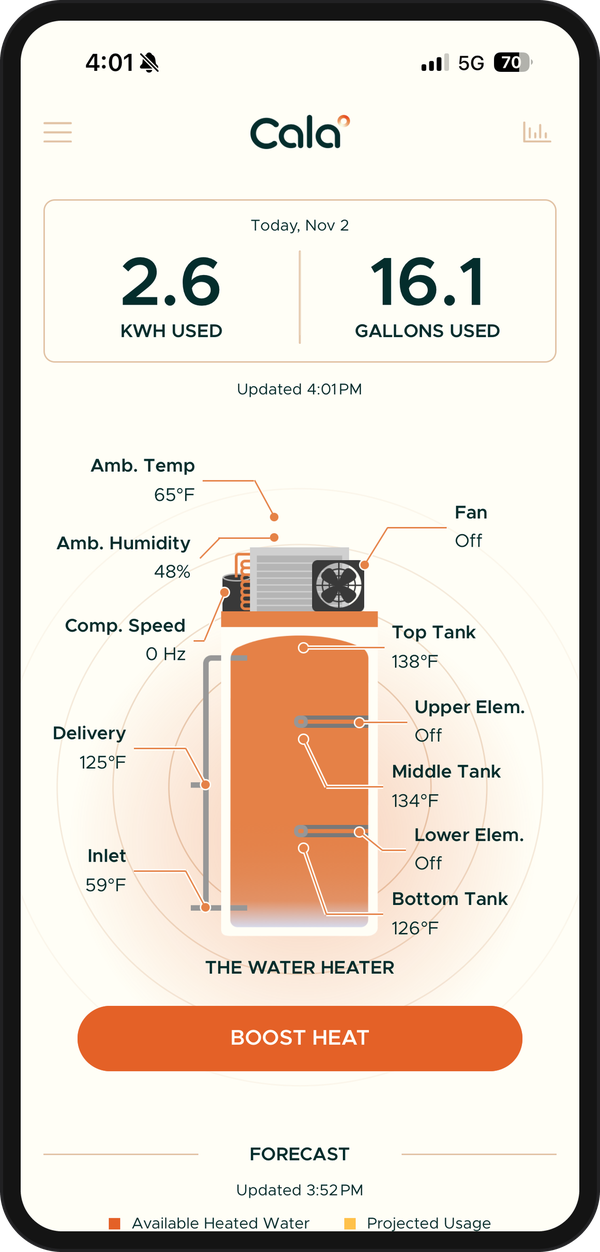
X-ray mode labels each part of your Cala with a live reading. -
Tap the tank again to go back to the normal view.
The forecast
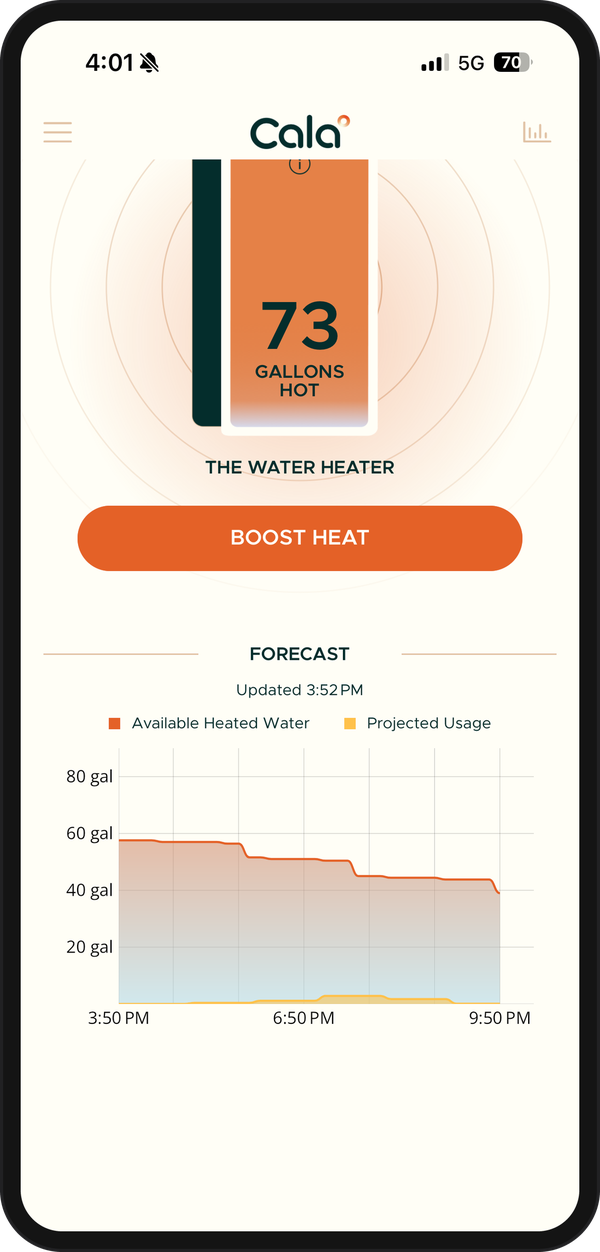
Scroll down to Forecast. The chart compares two lines over the next six hours:
- Available Heated Water: how much hot water Cala plans to have ready.
- Projected Usage: how much hot water Cala expects your home to use.
For your first month, you'll see We're still learning your patterns instead, with a countdown of days. Cala needs about 30 days of your hot water use before it can forecast. See Your first month: how Cala learns.
If you see Predictive Control Temporarily Paused, your recent hot water use has been too varied to predict well. Cala heats the standard way for now and goes back to predicting on its own once your use settles.
Today's charts
-
In the Cala app, on the Home screen, tap the chart icon in the top right corner.
-
A panel slides up with two hour-by-hour bar charts for today: Hot Water Usage and Electricity Usage. The totals for the day show above them.
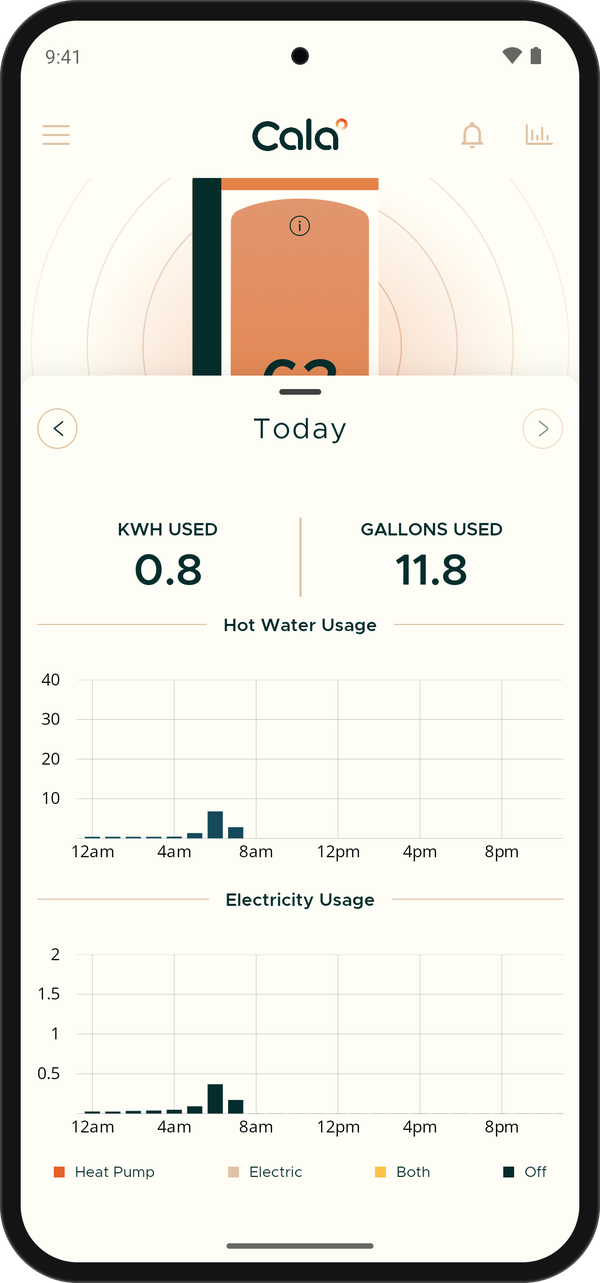
The Charts panel for today. -
Read the colors of the electricity bars from the key below the charts: Heat Pump, Electric, Both or Off. Mostly Heat Pump is what you want: it's the most efficient way to heat.
-
Press and hold a bar to see that hour's numbers in the totals at the top. Let go to see the day's totals again.
-
Tap the left arrow to see an earlier day. Tap Back to Today to return to today.
For weeks, months or a year at a time, see See your water and energy history.
Banners at the top
No Connection to Water Heater
This red banner means the app hasn't heard from your Cala recently. The numbers on screen may be out of date, and Boost and x-ray mode are turned off until it reconnects.
-
Tap the banner. A message tells you when the app last heard from your Cala.
-
If your Wi-Fi is working, tap RECONNECT to connect your Cala again, or tap Help to contact us.
For more help, see Change Wi-Fi or reconnect an offline heater.
The menu
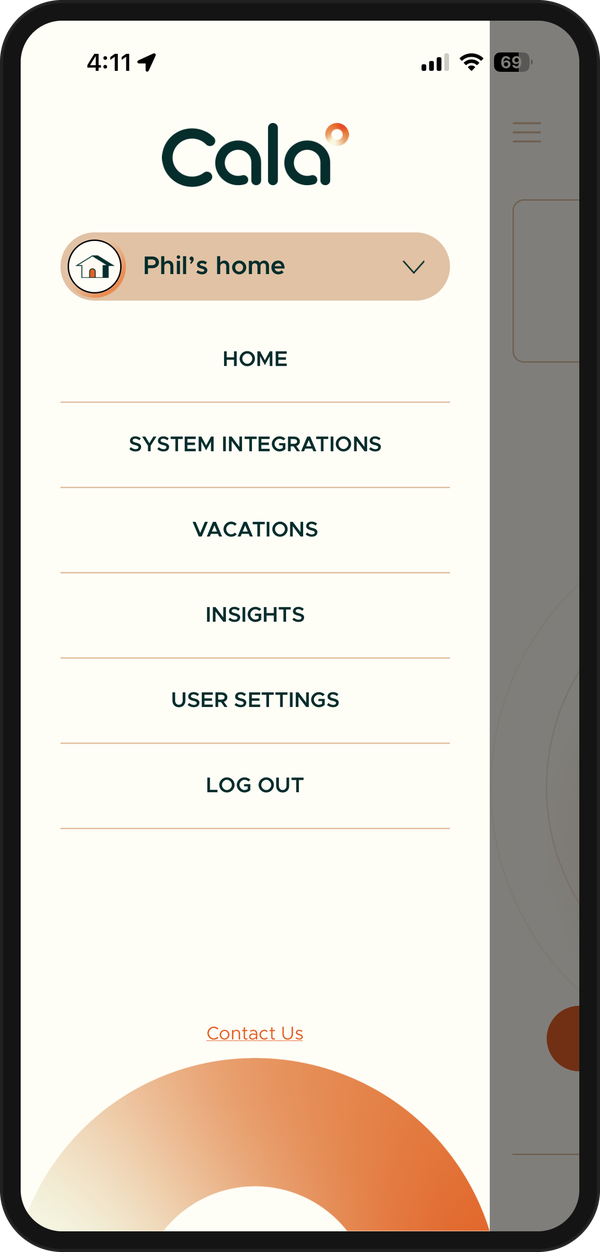
Tap the menu icon at the top left to switch homes and reach SYSTEM INTEGRATIONS, VACATIONS, INSIGHTS, USER SETTINGS and LOG OUT. The bell icon in the top right opens your notifications.